- Unplug your modem and router from the wall. Don’t just flip a switch—pull the plugs. Wait a full 60 seconds so everything can fully discharge.
- Plug the modem back in first. Wait for the lights (Power, Receive, Send, Online) to go solid and calm down. That can take 2-3 minutes.
- Plug the router back in. Give it time until the Wi-Fi light settles into its normal pattern.
- Restart your thermostat. Usually you can do it right in the settings menu—look for "Restart" or "Reboot." If not, gently pop the thermostat body off the wall plate, wait 30 seconds, and snap it back on. That’ll force a reboot.
- Try connecting to Wi-Fi again from the thermostat screen.
HVAC · High energy usage
| Project category | HVAC |
|---|---|
| Problem type | High energy usage |
| Trade required | HVAC |
| Urgency | Planned project |
| Safety risk | Low safety risk |
| DIY suitability | DIY for experienced homeowners |
| Cost category | High cost |
| Typical timeline | Assessment within weeks; replacement planned off-season |
| Contractor type | Licensed HVAC technician |
Repair option
Duct sealing, insulation, and a tune-up before touching the equipment.
Replacement option
High-efficiency replacement sized by a load calculation, not a rule of thumb.
Common causes
- Aging, low-efficiency equipment
- Leaking ducts losing conditioned air
- Insufficient attic insulation
- Oversized system short-cycling
Relevant tools:project cost estimatorrepair or replace
Published October 3, 2026Last updated October 3, 2026
Tools & materials you'll need
Affiliate linksAs an Amazon Associate FixlyGuide earns from qualifying purchases — at no extra cost to you. Prices and availability are accurate as of publication and subject to change.
Quick Answer
If your smart thermostat won't connect to Wi-Fi, the first thing I’d check is the router. It might be too far away, stuck on the wrong frequency band (2.4GHz vs. 5GHz), or just need a plain old reboot. Weak or low C-wire voltage can also make the connection flaky, because the thermostat can’t keep its Wi-Fi radio fed. I’ve seen a simple restart of both the router and the thermostat bring it back online in minutes.
The Problem
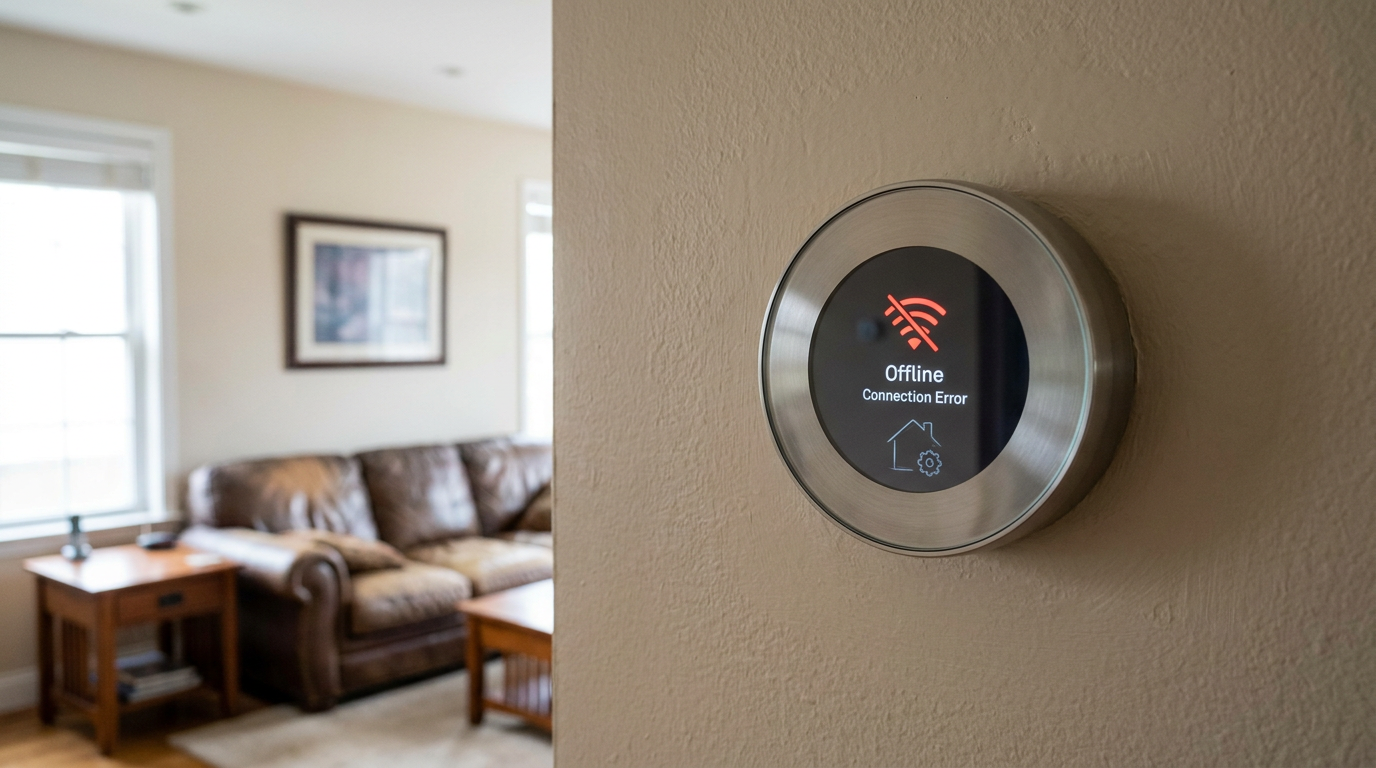
You paid good money for a smart thermostat because it’s supposed to make life easier—change the temp from your phone, set schedules, shave a little off the bill. But now it’s dropped off the Wi-Fi, and that fancy little screen on the wall might as well be an old mercury stat. The app says "offline," remote control is dead, and all the bells and whistles are sitting there doing nothing. Annoying? Sure. Common? You bet.
Most of the time, the thermostat isn’t broken. It’s just not talking cleanly to your wireless network. Think of it like two guys on walkie-talkies, except one’s behind a couple walls and the other’s on the wrong channel. Your thermostat is trying to reach the router, but something’s in the way.
How It Works
Inside that thermostat is a tiny Wi-Fi radio that runs on low power. For it to work right, it needs two things: steady power and a decent wireless signal. That power piece matters a lot. A basic thermostat just sips power from the transformer through the R and W/Y wires, but a smart thermostat is more like a little computer. It’s got a processor, a screen, and that Wi-Fi chip—all of it needs juice.
Most of the time, that power comes from a "C-wire" (Common wire), which gives a continuous 24 volts AC from your HVAC transformer. If that C-wire’s missing, loose, or the transformer’s tired, the thermostat may still light up and run basic stuff, but it won’t hold a steady Wi-Fi connection. Same story I ran into in Frisco last month—I pulled a thermostat that kept dropping offline every evening, and the whole issue turned out to be a weak common wire at the air handler. Looked like a network problem. Wasn’t. It was starved for power.
That’s why this gets tricky. It feels like Wi-Fi trouble, but half the time it’s really a power issue wearing a network hat.
Step-by-Step Fix
Work through these steps in order, from simplest to most involved. Don’t jump around. The easy fixes are usually the ones that do the trick.
1. Reboot Everything—in the Right Order
- Tools: None.
- Safety: Just patience.
Little electronic hiccups are the number one culprit here. A reboot clears out temporary junk in both the router and thermostat so they can start clean. And yeah, the order matters.
- Unplug your modem and router from the wall. Don’t just flip a switch—pull the plugs. Wait a full 60 seconds so everything can fully discharge.
- Plug the modem back in first. Wait for the lights (Power, Receive, Send, Online) to go solid and calm down. That can take 2-3 minutes.
- Plug the router back in. Give it time until the Wi-Fi light settles into its normal pattern.
- Restart your thermostat. Usually you can do it right in the settings menu—look for "Restart" or "Reboot." If not, gently pop the thermostat body off the wall plate, wait 30 seconds, and snap it back on. That’ll force a reboot.
- Try connecting to Wi-Fi again from the thermostat screen.
2. Check the Wi-Fi Band: 2.4 GHz vs. 5 GHz
- Tools: Your smartphone or computer.
A lot of smart thermostats, especially older ones, can only connect to 2.4 GHz Wi-Fi. They won’t even see 5 GHz. The 2.4 GHz band reaches farther, but it gets crowded and noisy. 5 GHz is faster, but it doesn’t go nearly as far.
- How to check: Your home Wi-Fi may show up as one name, like "MyHomeWifi," and let devices figure out the band on their own. That band steering can confuse a thermostat. Log into your router’s admin panel—usually through an app or a browser at something like 192.168.1.1—and either turn off the 5 GHz band for a bit or split the names into something like "MyHomeWifi_2.4" and "MyHomeWifi_5".
- The Fix: Hook the thermostat to the "MyHomeWifi_2.4" network on purpose. If it grabs on, that’s your answer.
3. Check Signal Strength
- Tools: Your smartphone.
Your thermostat may simply be too far from the router. Walls can wreck a Wi-Fi signal—brick, plaster, metal lath, all of it.
- How to check: Stand right next to the thermostat with your phone. Look at the Wi-Fi bars. Run a speed test. Then walk over by the router and do it again. If the signal drops hard at the thermostat, you’ve got a range problem.
- The Fix: You might need a Wi-Fi extender or a mesh system to get a stronger signal to that part of the house. A Wi-Fi extender can run as low as $20-$40.
4. Check Your Router's "Connected Devices" Limit
- Tools: Your router's admin app or web interface.
Some routers—especially older ones or the ones your internet company hands you—cap the number of devices that can connect at once. Twenty. Thirty. Sometimes not much more. Between phones, TVs, cameras, laptops, plugs, and all the rest, it fills up faster than folks think.
- How to check: Open your router’s admin screen and look for "Connected Devices," "Device List," or "DHCP Client List." Count them. If you’re close to the limit, that may be the whole issue.
- The Fix: Kick off a device you barely use, reboot the thermostat, and see if it can get a slot.
5. Verify the C-Wire and Voltage
- Tools: Multimeter, screwdriver.
- Safety: Turn off power to your HVAC system at the breaker panel before touching any wires. A shock, while unlikely to be fatal, is unpleasant and can damage your equipment.
This is the big one for intermittent problems. The thermostat’s got just enough power to function, but not enough to keep the Wi-Fi radio awake.
- Turn off the breaker for your "Furnace" or "Air Handler."
- Gently pull the thermostat faceplate off the wall.
- Set your multimeter to VAC (Volts AC) mode, in a range that can read at least 24V.
- Carefully touch one probe to the terminal screw for the R wire (or Rh/Rc) and the other probe to the screw for the C wire.
- You should get a reading between 22V and 28V AC. If it's below 22V, or jumping around all over the place, you’ve got a power issue. Could be a weak transformer, a damaged wire, or a loose connection at the furnace control board.
- If you don't have a C-wire: Your thermostat may be "power stealing," and that setup’s notoriously shaky for Wi-Fi. You’ll need to install a C-wire or use a C-wire adapter (a small plug-in transformer that powers the thermostat directly).
Common Causes
- Router Position: This one’s a biggie. The router’s shoved in a basement office, while the thermostat’s on the main floor with ductwork and plaster walls between them.
- Network Congestion: You’re in an apartment building where a dozen other Wi-Fi networks are stomping all over the same 2.4 GHz channels.
- Incorrect Password: Happens all the time. You changed the Wi-Fi password and never updated it in the thermostat.
- Power Stealing Issues: No C-wire, so the thermostat tries to charge itself by "stealing" tiny bits of power when the heat or AC kicks on. That usually isn’t enough for a power-hungry Wi-Fi radio.
- Router Security Settings: The firewall or security settings on the router might be too tight and blocking the thermostat. Not common, but I’ve seen it.
- DHCP/IP Address Conflict: The router handed the thermostat the same IP address as another device. That’ll knock it offline in a hurry.
Common Mistakes
- Hiding the router: Tucking the Wi-Fi router in a cabinet, behind a TV, or in a basement corner is a fast way to wreck the signal. Routers need open space. Plain and simple.
- Ignoring the 2.4 GHz requirement: Plenty of folks burn hours trying to get a thermostat onto 5 GHz when it can’t use that band at all. No dice.
- Guessing at the wiring: Not shutting off the breaker and then shorting the R and C wires. That can blow a small 3A or 5A fuse on the furnace control board and kill power to the thermostat completely.
- Forgetting a password change: Changing the home Wi-Fi password for security and forgetting the thermostat still needs the new one manually.
- Choosing the wrong network: Accidentally connecting the thermostat to a neighbor’s open Wi-Fi or your own "Guest" network, which usually blocks device-to-device communication.
Cost & Time Breakdown
| Task | DIY Cost | Pro Cost | Time |
|---|---|---|---|
| Reboot router and thermostat | $0 | N/A | 5-10 minutes |
| Change router channel/band | $0 | N/A | 15 minutes |
| Install a Wi-Fi extender | $25–$60 | N/A | 10 minutes |
| Check C-wire voltage | $20 (for a multimeter) | $100–$150 (service call) | 15 minutes |
| Install a C-wire adapter | $25–$40 | $125–$200 | 30-45 minutes |
| Run a new C-wire | $15 (for thermostat wire) | $175–$300+ | 2-4 hours |
Tips & Prevention
- Centralize your router: Best bet is to put the Wi-Fi router somewhere central in the house, up high, and out in the open.
- Name your bands: When you set up a new router, give the 2.4 GHz and 5 GHz networks different names (SSIDs). Makes life a whole lot easier when you’re connecting stuff like thermostats.
- Document your C-wire: If you’ve got a C-wire, snap a picture of the thermostat wiring before you pull anything apart. That photo can save your bacon later.
- Check for firmware updates: Every so often, check the thermostat app and the router admin page for firmware updates. They can patch security holes and fix Wi-Fi bugs you never knew were there.
- Use a multimeter: A basic multimeter is one of those tools every homeowner ought to have. For under $25, it’ll help you diagnose all kinds of electrical headaches, from dead outlets to thermostat wiring issues.
When to Call a Professional
This is a pretty DIY-friendly problem, but there are a few clear signs it’s time to call an HVAC tech or electrician. If you’ve used a multimeter and confirmed your C-wire voltage is below 22V AC, or if you see burnt spots or damage on the furnace control board, stop right there. Low voltage usually means a bad transformer or a wiring short somewhere in the system, and that takes a proper diagnosis. Same goes if you’re not comfortable running a new thermostat wire from the furnace to the thermostat—an HVAC pro can knock that out fast and make sure it’s done right.
Related Articles
Keep troubleshooting with these hand-picked guides from FixlyGuide:
- The #1 Mistake Homeowners Make When Their Heat Pump Stops Heating in Winter — Discover the most common reason your heat pump struggles in cold weather and how a simple homeowner fix can restore warmth to your home.
- Thermostat Reading Wrong Temperature? 9 Reasons and How to Recalibrate — Your thermostat says it's 75°F, but it feels like 80°F. Here are the most common causes for a thermostat reading the wrong temperature and…
- The Furnace That Won't Start: 3 Hidden Reasons Your Heat Quit — When your furnace won't kick on, it's often more than just the thermostat. Discover the overlooked culprits that stop your heat dead in its…
- The Hidden Reason Your Furnace Short Cycles (and the $15 Fix) — Furnace short cycling can drive up energy bills and wear out your system prematurely; often, a simple fix like a dirty filter or miscalibra…
- The Humid House Headache: Why Your AC Can't Keep Up (and the Simple Fix) — Ever wonder why your AC is blasting but your house still feels muggy? I've seen it hundreds of times; your system might be oversized or jus…
- Why Your Garbage Disposal Just Died (And the One Thing You Should Check First) — Don't panic if your garbage disposal went silent. Often, it's a simple, overlooked electrical issue you can fix in minutes without a plumbe…
What should this project cost?
Enter your project details for a realistic cost range before you call anyone.
Service calls and common repairs run $150–$900; full system replacement typically $6,000–$12,000.
- Regional adjustment
- National average
- Labor share (typical)
- ~$1,935
- Quotes to collect
- 3 written estimates
Educational estimate based on national averages — not a binding quote. Always confirm with written local estimates.
Fixly Project Decision Box
- DIY difficulty
- Advanced
- Estimated time
- Homeowner checks 20–30 minutes
- Cost level
- Moderate
Main tools / materials
- Clean air filter
- Garden hose for condenser coils
- Shop vac for the condensate line
When to stop and call a pro
- Burning smell, smoke, or a tripping breaker
- Refrigerant lines iced over or hissing
- Any work inside the sealed refrigerant circuit (EPA-licensed only)
- Gas smell near a furnace — leave and call the utility
Need professional help?
Find an HVAC Pro Near YouGet the print-ready PDF of this guide
A clean, ad-free, printable version you can keep on your phone or pin to the workshop wall. Free with a FixlyGuide account.
- Print-optimized layout
- Tools, materials & every step included
- Saved to your account
Frequently asked questions
Why does my smart thermostat keep disconnecting from Wi-Fi?+
The most common reasons are a weak Wi-Fi signal, interference from other devices, or insufficient power from the C-wire. The thermostat's Wi-Fi radio needs a stable 24V AC to operate, and if the voltage drops, the connection is often the first thing to fail.
Can a thermostat work without Wi-Fi?+
Yes, it will function as a basic, non-programmable thermostat. You can still adjust the temperature manually at the wall, but you will lose all 'smart' features like app control, scheduling, and voice commands.
Do I need a C-wire for my smart thermostat to stay connected?+
While some thermostats can 'steal' power without a C-wire, it's notoriously unreliable for maintaining a stable Wi-Fi connection. A C-wire provides a continuous power source and is highly recommended to prevent offline issues. If you don't have one, a C-wire adapter is the next best solution.
How do I know if my thermostat is 2.4 GHz or 5 GHz?+
Check the product's technical specifications online. The vast majority of smart thermostats, especially models made before 2022, only support 2.4 GHz. This is because 2.4 GHz offers a longer range, which is more important than speed for a thermostat.
How do I reboot my smart thermostat?+
Look for a 'Restart' or 'Reboot' option in the device's on-screen settings menu. If you can't find one, you can power cycle it by gently pulling the main body off its wall-mounted baseplate, waiting 30 seconds, and then clicking it back into place.
Will a Wi-Fi extender help my thermostat stay online?+
Yes, if the problem is a weak signal due to distance from the router, a Wi-Fi extender can be a very effective and inexpensive solution. Place the extender halfway between your router and the thermostat to boost the signal.
My thermostat says it's connected, but the app says it's offline. What's wrong?+
This often points to a cloud service or account issue. Try logging out of the thermostat's app on your phone and logging back in. You can also try rebooting the thermostat itself to force it to re-establish its connection with the manufacturer's servers.
Could my new router be the problem?+
Absolutely. Newer routers often use advanced features like band steering (WPA3 security) or have aggressive firewalls that can be incompatible with some older smart devices. Try creating a dedicated 2.4 GHz guest network with simpler WPA2 security just for your smart home devices.
Discussion
Loading comments…